
Why Managing Your Google Business Profile Access Matters
How to add someone to manage google my business is straightforward: sign in to your Google Business Profile, steer to Business Profile Settings > People and Access, click “Add,” enter the person’s email address, select their role (Owner or Manager), and click “Invite.” The person will receive an email invitation they must accept to gain access.
Quick Steps to Add a Manager:
- Sign in to your Google Business Profile at https://business.google.com
- Select the business location you want to manage
- Click the three-dot menu and choose “Business Profile settings”
- Steer to “People and access”
- Click “Add” and enter the email address
- Choose the role: Manager or Owner
- Click “Invite” to send the invitation
If you’re running a business, you already know your Google Business Profile is critical for showing up in local search results. When potential customers search for businesses like yours on Google Search or Google Maps, your profile is often the first thing they see.
But keeping that profile updated, responding to reviews, posting regular updates, and managing customer messages takes time. A lot of time.
That’s where delegating access comes in. By adding team members, marketing agencies, or trusted partners as managers or owners, you can share the workload without compromising security. You won’t need to hand over your personal Google account password, and multiple people can help maintain your online presence.
The reality is simple: 63.6% of consumers check Google reviews before visiting a business, yet 58% of businesses don’t optimize for local search. Adding the right people to manage your profile is one of the easiest ways to stay competitive and visible.
Whether you’re working with an SEO agency, onboarding a new marketing assistant, or simply need help managing multiple locations, understanding how to properly add and manage users is essential for maintaining control while improving efficiency.
Why Delegate Access to Your Google Business Profile?
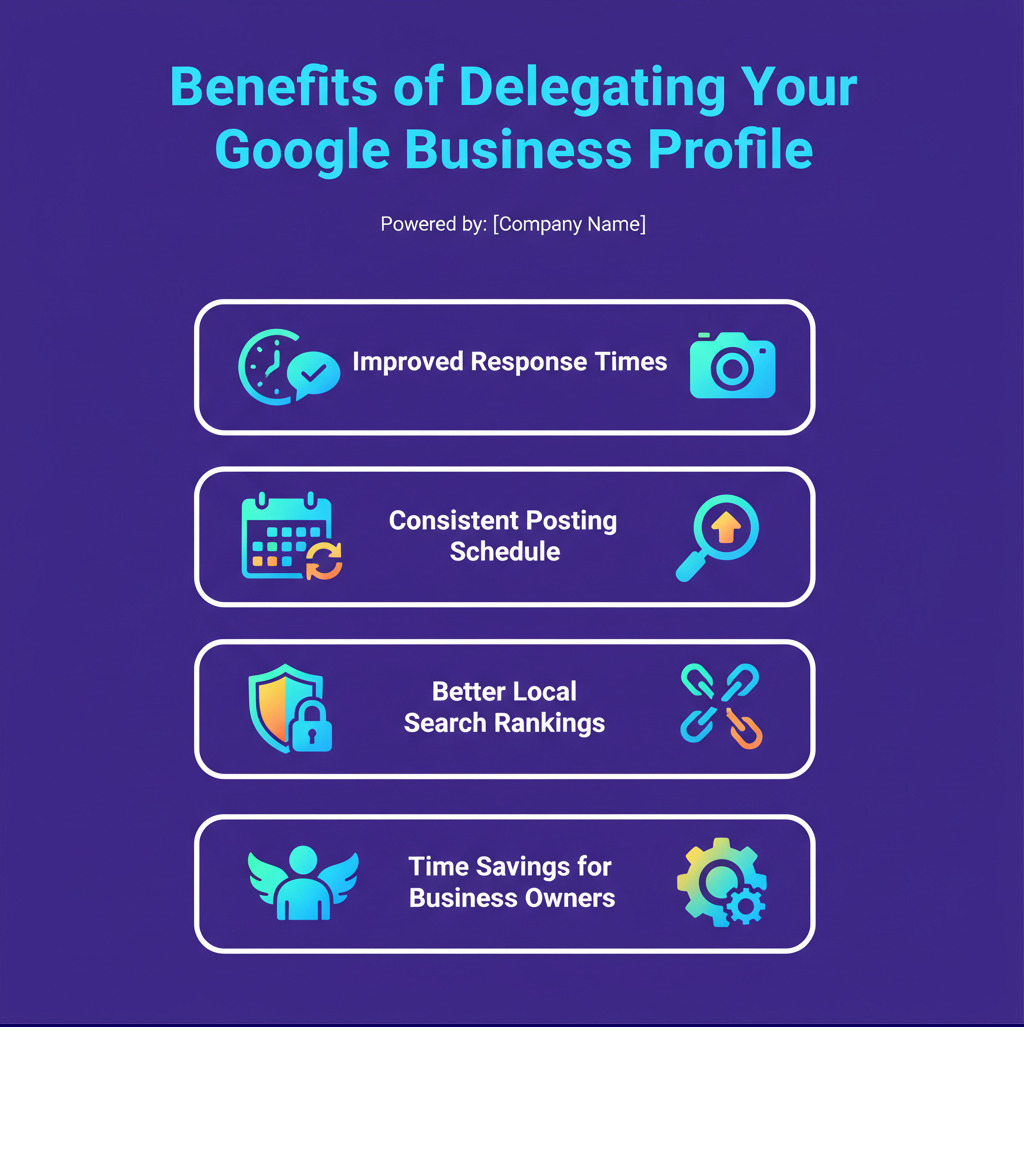
Running a business is demanding, and keeping your Google Business Profile consistently updated often falls by the wayside. However, your profile needs consistent attention as it’s often a customer’s first impression on Google Search or Google Maps. The good news is you don’t have to do all the work yourself.
Delegating access to your Google Business Profile is one of the smartest moves you can make for both efficiency and peace of mind.
By adding a team member or a Google Business Profile Optimization Services provider, you ensure your online presence gets the attention it needs. This allows for timely review responses, regular updates, and prompt message replies, even when you’re busy.
Delegation also boosts security. Instead of sharing your password, you grant access through individual Google accounts. This keeps your personal information private and secure. No password sharing means improved security, plain and simple.
Granting manager access to an SEO agency for your SEO and GMB strategy enables powerful collaboration. They can track performance, analyze customer interactions, and use these insights to optimize your profile for better local rankings.
Delegating ensures consistent management: thoughtful review responses build your reputation, fresh posts engage customers, and quick replies to messages can turn inquiries into sales.
Learning how to add someone to manage Google My Business is a small time investment with a lasting impact. You maintain control as the primary owner while empowering others to improve your online presence—it’s about working smarter, not harder.
Understanding Google Business Profile User Roles and Permissions
Before you add someone to manage google my business, it’s worth taking a moment to understand exactly what access you’re granting. Google Business Profile offers three distinct user roles, each with different levels of control. Think of it like handing out different sets of keys to your business—some open every door, while others only open up certain rooms.
The Primary Owner sits at the top of the hierarchy. This is typically the person who first claimed the business listing, and there can only be one primary owner per profile. They hold all the cards: they can add or remove anyone, edit every detail of the business information, and even transfer their primary ownership to someone else. Interestingly, a primary owner can’t simply remove themselves from the profile—they must first transfer that primary ownership role to another user.
Next up are Owners. You can have multiple owners on a single Business Profile, and they have nearly the same capabilities as the primary owner. They can add or remove other users, edit business information, manage posts and reviews, and even delete the business profile if needed. The key difference? An owner cannot remove the primary owner or transfer primary ownership. They’re powerful, but not that powerful.
Finally, there are Managers. This role is perfect for team members who need to handle the day-to-day operations of your profile. Managers can edit business details, respond to customer reviews, create posts, manage photos, and handle customer messages. However, they cannot add or remove users, delete the business profile, or transfer ownership. They’re the hands-on operators, but they don’t hold administrative keys.
Here’s a quick comparison of what each role can actually do:
| Capability | Primary Owner | Owner | Manager |
|---|---|---|---|
| Edit business information | Yes | Yes | Yes |
| Respond to reviews | Yes | Yes | Yes |
| Create and manage posts | Yes | Yes | Yes |
| Manage photos/videos | Yes | Yes | Yes |
| View insights | Yes | Yes | Yes |
| Add/remove other users | Yes | Yes | No |
| Transfer primary ownership | Yes | No | No |
| Delete the business profile | Yes | Yes | No |
| Remove self from profile | Yes* | Yes | Yes |
*The Primary Owner must transfer ownership before removing themselves.
One important detail to keep in mind: when you add a new owner or manager, they’ll face a 7-day waiting period before they can perform certain sensitive actions. During those seven days, they won’t be able to delete the profile, remove other users, or transfer primary ownership. This waiting period is Google’s security measure to prevent someone from gaining access and immediately making drastic changes to your business listing.
Understanding these permissions helps you maintain control while still empowering your team or agency partners to do their jobs effectively. You can grant exactly the right level of access to each person—no more, no less. For more detailed information about managing these roles, Google’s official documentation provides helpful guidance: Manage your Business Profile owners & managers – Google Help.
How to Add Someone to Manage Google My Business (Step-by-Step)
Ready to add someone to manage google my business? The process is refreshingly simple, whether you’re sitting at your desk or managing things from your phone. The most important thing to remember is that you need to be logged into a Google account that currently has owner access to the profile. And whoever you’re inviting? They’ll need their own Google account too, since that’s how they’ll accept your invitation and access the profile.
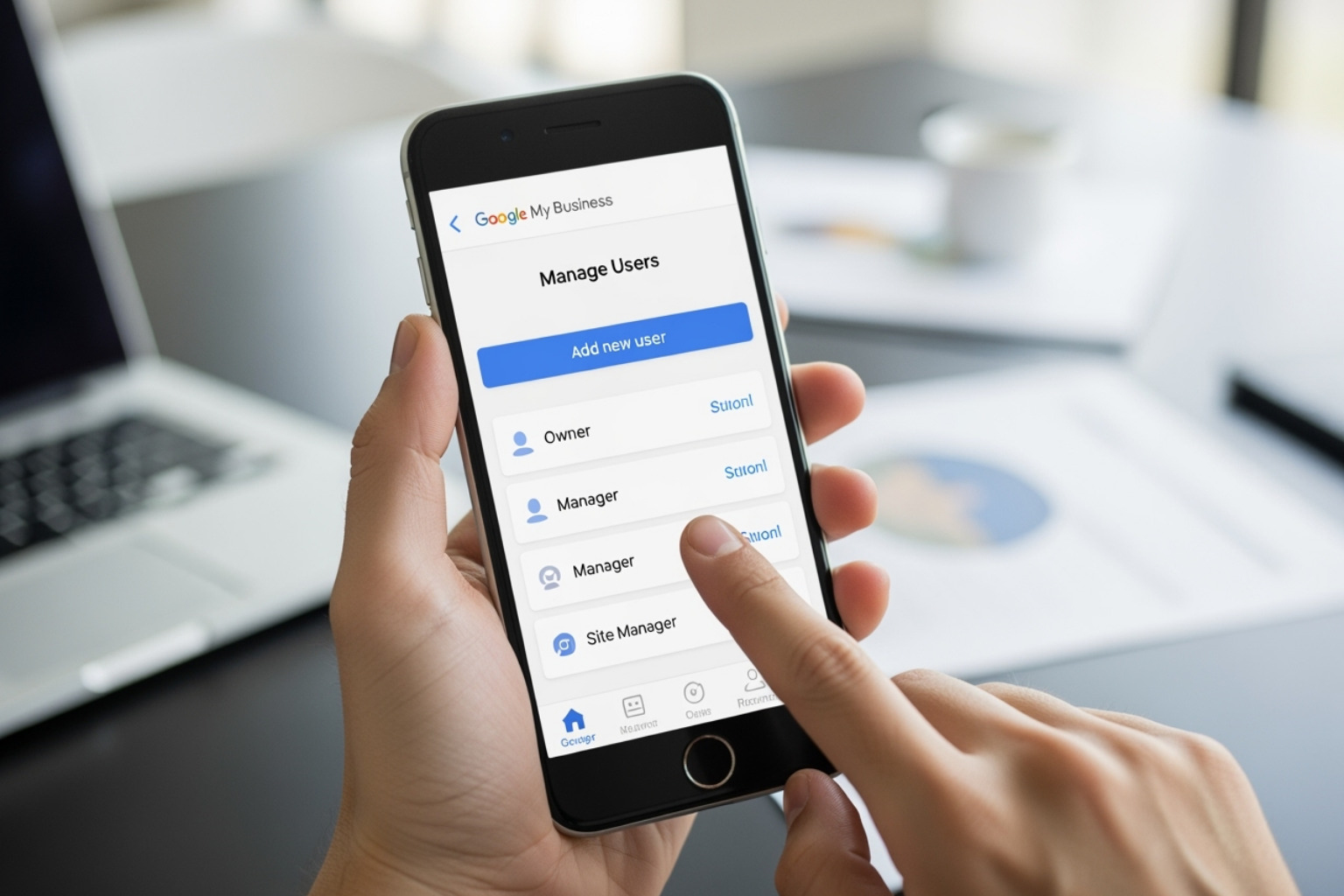
How to add someone to manage Google My Business via Desktop
If you’re working from your computer, the desktop interface makes adding new users straightforward and visual.
Start by heading over to https://business.google.com/ and signing in with your Google account. If you manage several locations, take a moment to select the specific business you want to work with from your dashboard.
Once you’re looking at your business’s profile, find the three-dot menu (sometimes it’s labeled “More” or you might see “Business Profile settings” directly). Click on Business Profile settings to open up your options. From there, you’ll want to steer to the “People and access” section. This is where all the magic happens—it’s your central hub for seeing who currently has access and what they can do.
In the “People and access” area, you’ll spot an “Add” button, usually marked with a person icon and a little plus sign. Click that to get started.
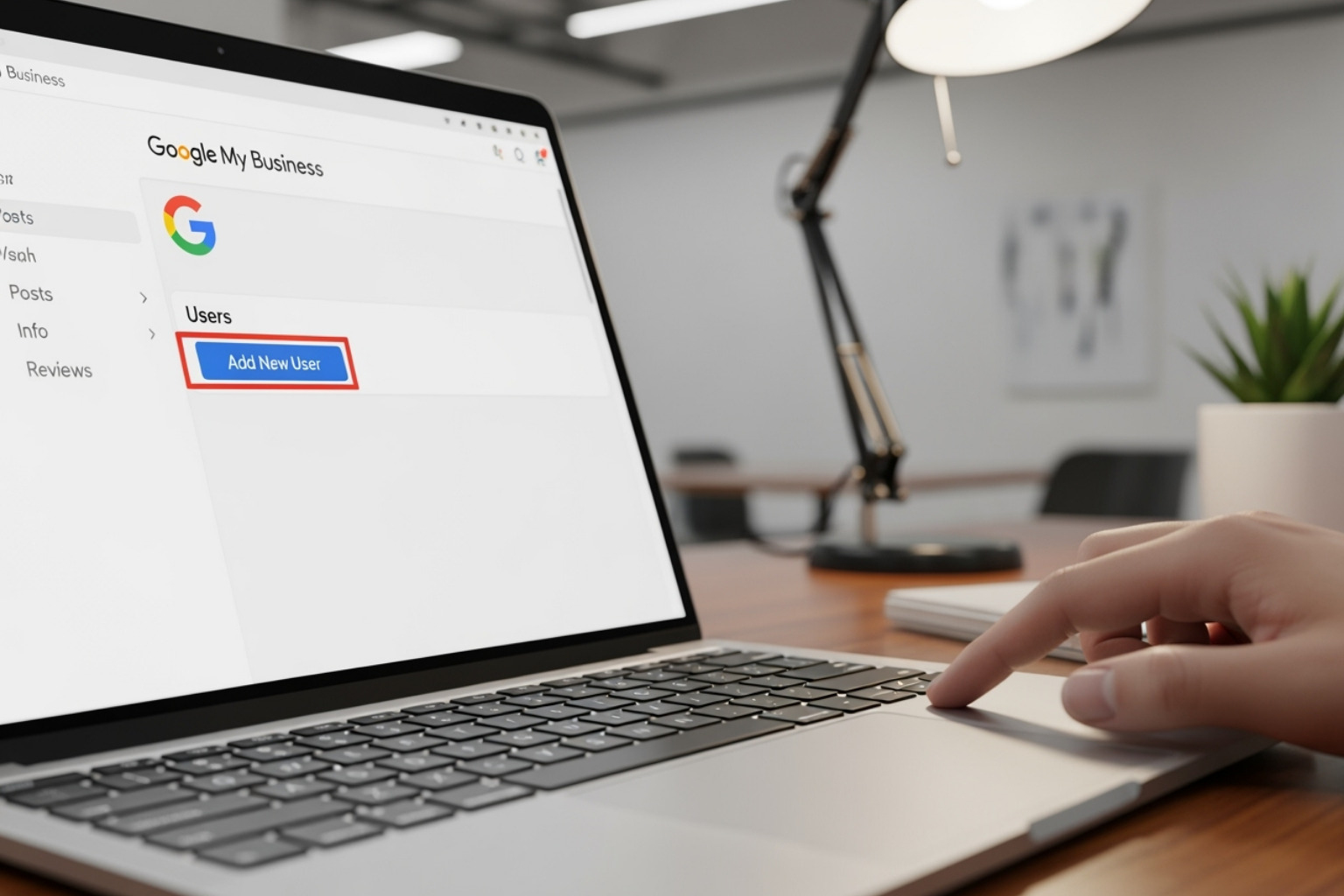
A window will pop up asking for the email address of the person you’re inviting. Make sure you enter it exactly as it appears on their Google account—typos here will send the invitation into the void. Next, you’ll see a dropdown where you can select their role: either “Owner” or “Manager.” Think carefully about which level of access makes sense for this person based on what you learned about permissions earlier.
When everything looks good, hit that “Invite” button. Your new user will receive an email invitation they’ll need to accept before they can start helping with your profile.
How to add someone to manage Google My Business via the Mobile App
Need to add someone while you’re out and about? The mobile app has you covered with the same functionality in a pocket-sized package.
Open up the Google Business Profile app on your phone or tablet. Make sure you’re signed in with the right Google account—the one that owns the business profile you want to modify. If you’re juggling multiple business profiles, select the one you need from your list.
Look for the “More” option or the three-dot menu icon. It’s usually hanging out at the bottom of your screen or in the top right corner. Tap it, and you’ll see a menu appear. From there, select “Manage users” (sometimes called “People and access”).
You’ll see an icon to add a new user—typically a person silhouette with a plus sign. Tap that, then enter the email address of your new manager or owner. Just like on desktop, accuracy matters here, so double-check that email before moving forward.
Choose whether you want to make them an “Owner” or “Manager” by selecting the appropriate role. Then tap “Send invitation” to seal the deal. The person will get an email notification and can accept their new role from there.
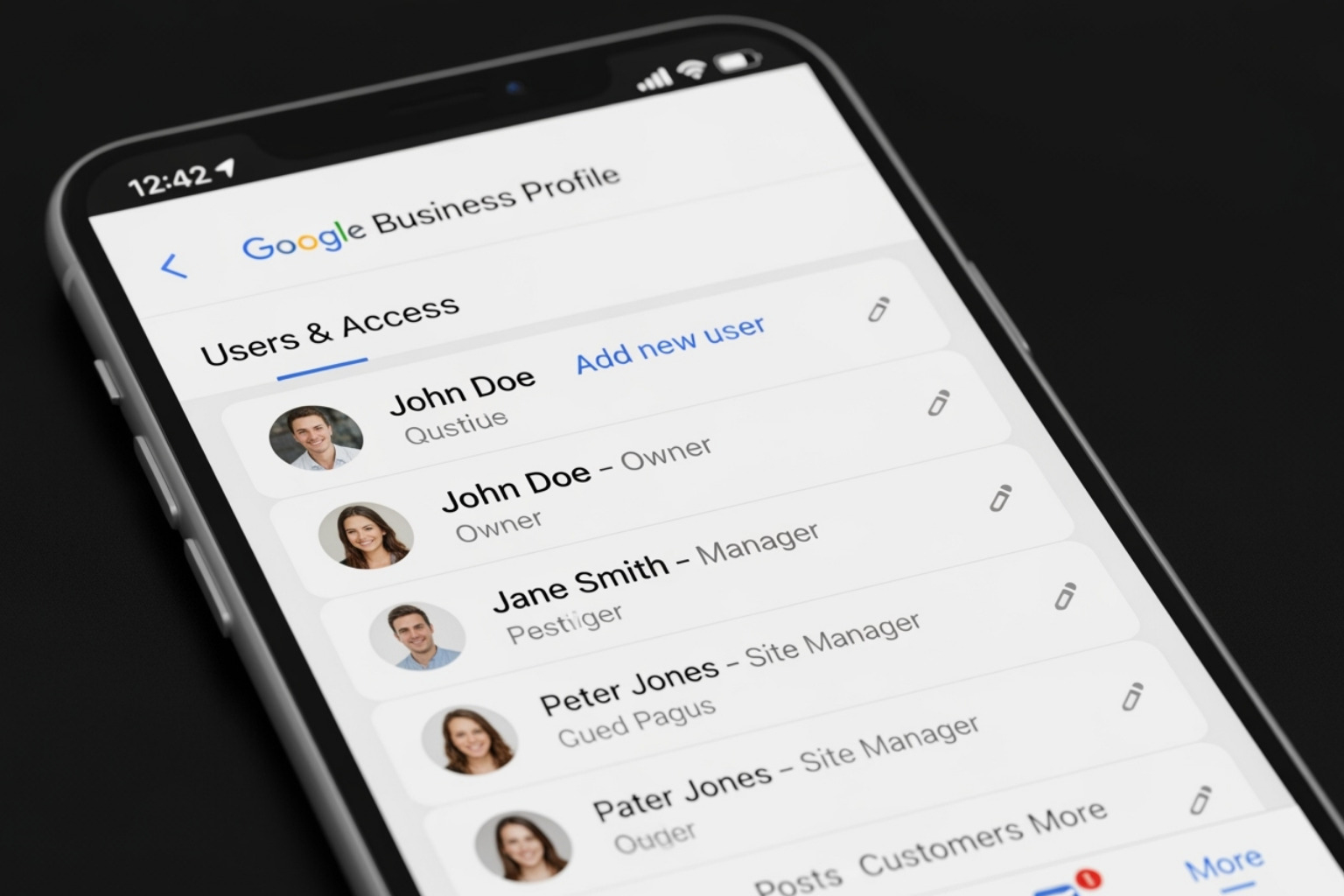
Whether you’re using desktop or mobile, the process takes just a few minutes. Once your invitation is sent, the recipient will have everything they need to start helping you manage your Google Business Profile and keep your local presence strong.
How to Manage, Change, or Remove Existing Users
After learning how to add someone to manage google my business, you must also manage them to keep your profile secure. As your team and agency relationships change, regularly reviewing who has access is a critical, ongoing task. When someone leaves, removing their access immediately is essential for security.
Google makes it easy to change roles and remove users, but only owners can perform these actions.
Changing a User’s Role
Roles evolve. You may need to promote a manager to an owner or downgrade an owner to a manager as responsibilities shift.
To adjust a user’s role, sign in to your Google Business Profile at https://business.google.com/ as an owner. Go to Business Profile settings through the three-dot menu, then select “People and access.”
Find the user, click the edit icon next to their role, and select the new role from the dropdown menu. Click “Save” to apply the change immediately.
Only owners can change access roles for other users. The primary owner has the ultimate authority, but any owner can adjust the roles of managers and other owners (though they cannot demote the primary owner).
Removing a User from Your Profile
Promptly removing access for former employees or agencies is a critical security practice. Do not delay this step.
The process is similar to changing roles. As an owner, go to Business Profile settings and select “People and access.” Find the user you want to remove.
Click the “Remove person” icon (often a trash can) next to their name. Google will ask for confirmation to prevent accidents. Once you confirm, their access is revoked immediately, and they will no longer be able to view or edit your profile.
If you’re experiencing visibility issues and wondering Why is my Google Business Profile only visible to managers?, it could be related to verification or other settings. But regardless of the cause, maintaining a clean list of only current, necessary users is always a smart security practice.
One important note: if you’re the primary owner and want to remove yourself from the profile, you’ll need to transfer primary ownership to another user first. Google requires this step to ensure every Business Profile always has someone with ultimate control.
Best Practices and Troubleshooting Common Issues
Knowing how to add someone to manage google my business is just the start. To maintain a secure, well-managed profile, you must stay on top of who has access and know how to troubleshoot common issues.
Treat your Google Business Profile access like keys to your business—be selective about who gets them and revoke access when it’s no longer needed.
Conduct regular audits. Review your “People and access” section monthly. This quick check helps you find and remove outdated permissions, which significantly reduces security risks.
Enforce two-factor authentication (2FA). Require anyone with access to enable 2FA on their Google account. It adds a critical layer of security that protects against compromised passwords.
Use business email addresses. When adding users, use professional emails (e.g., sarah@yourcompany.com) instead of personal ones. This simplifies tracking and makes it clear which account to remove when an employee leaves.
Grant least-privilege access. Only give users the permissions they actually need. If someone only needs to post updates, the Manager role is sufficient. Limiting the number of Owners tightens security.
Revoke access immediately. When an employee or contractor leaves, remove their access right away. This simple step prevents future security issues.
Even with clear instructions, you might encounter problems. Here’s how to handle them:
Invitation email not received. This is a common problem. Ask the user to check their spam folder. If it’s not there, verify you entered the correct email address—a single typo can cause this. You can also resend the invitation from the “People and access” section.
Invitation sent to the wrong email. You can cancel a pending invitation before it’s accepted. Go to “People and access,” find the pending invite, and cancel it. Then, send a new one to the correct address.
User can’t accept the invitation. Ensure the person is logged into the correct Google account—the one matching the email address you invited—when they click the acceptance link. This is a common mistake for users with multiple accounts.
“You do not have permission” error. This error appears if you’re not logged in as an Owner. Only Owners can manage users. Sign in with an account that has owner-level permissions to resolve this.
These security practices and troubleshooting tips add up to a much more secure and smoothly running online presence. They’re part of what helps businesses Streamline Your SEO Efforts Using Outsourced Services effectively and safely.
Frequently Asked Questions about GBP User Management
You’re not alone if you have questions about managing users for your Google Business Profile. These are some of the most common concerns we hear from business owners when they’re learning how to add someone to manage google my business.
Can a manager remove an owner or the primary owner?
The short answer is no. Managers cannot remove owners or the primary owner from your Google Business Profile. Think of it this way: managers are there to handle the day-to-day tasks—editing business information, responding to reviews, creating posts, and keeping your profile active. They don’t have the administrative authority to change who owns or controls the profile.
Only an owner can remove other owners or managers. And the primary owner? They’re in a special position. They’re the only person who can transfer primary ownership to someone else, and they must complete that transfer before they can remove themselves from the profile. This hierarchy exists for a good reason: it ensures that ultimate control of your business’s online presence stays with the people who should have it.
Is there a limit to how many managers a profile can have?
Technically, Google doesn’t impose a hard limit on the number of managers you can add to your Business Profile. Whether you’re a small local shop or a multi-location enterprise, you can designate as many managers as you need to keep your profile running smoothly.
That said, just because you can add unlimited managers doesn’t mean you should. From a practical standpoint, having too many people with access can create confusion about who’s responsible for what. It can also introduce unnecessary security risks. The best practice? Keep your user list tight. Only grant access to people who genuinely need it for their specific role. If someone doesn’t need to log in regularly to manage your profile, they probably don’t need access at all.
What happens after a manager accepts the invitation?
Once someone accepts your email invitation to become a manager, they’ll gain access to your Google Business Profile almost immediately. They’ll be able to jump right in and start helping with most operational tasks—editing your business details, responding to customer reviews, posting updates, and managing messages.
There’s one important catch to be aware of: the 7-day waiting period. For security reasons, Google restricts certain administrative actions for new owners and managers during their first week. They won’t be able to delete the profile, remove other users, or transfer primary ownership during this time. After those 7 days pass, they’ll have full access to all the capabilities that come with their role.
New managers will also start receiving email notifications about important profile activity—new reviews, suggested edits, and performance insights. This helps them stay on top of what’s happening with your business’s online presence right from the start.
Conclusion
Learning how to add someone to manage google my business isn’t just about clicking a few buttons—it’s about making a smart decision that can transform how you run your business. When you delegate access to your Google Business Profile, you’re freeing yourself to focus on what you do best while ensuring your online presence stays sharp, responsive, and competitive.
Think about it: your Google Business Profile is often the first impression potential customers get of your business. When someone searches for what you offer on Google Search or Maps, that profile needs to shine. By bringing the right people into the fold—whether that’s a marketing-savvy team member, a dedicated assistant, or a professional agency—you’re ensuring someone is always there to respond to reviews, post timely updates, and keep your business information accurate.
The journey we’ve covered today gives you everything you need. Understanding user roles helps you maintain control while sharing responsibility. The Primary Owner holds the keys to the kingdom, Owners can handle nearly everything, and Managers keep the daily operations humming. Knowing these distinctions means you can grant access without giving away the farm.
The step-by-step process we walked through, whether on desktop or mobile, shows just how straightforward it really is. And once you’ve added users, staying on top of things through regular management—changing roles when needed, removing access promptly when relationships end—keeps your profile secure and efficient.
Security matters, too. Using two-factor authentication, conducting regular audits, and sticking with business email addresses aren’t just good ideas—they’re essential practices that protect your business’s digital front door.
Here’s the reality: local search is where the action is. With most consumers checking Google reviews before they ever walk through your door, and a surprising number of businesses still not optimizing for local search, you have a genuine opportunity to stand out. Managing your Google Business Profile well, with the right team supporting you, is one of the most practical ways to capture that advantage.
At MDM Marketing, we understand that running a business is demanding enough without adding technical headaches to the mix. Based in North Canton, OH, we specialize in data-driven SEO and copywriting that actually works—combining the technical know-how with content that connects with real people. If you’re ready to take your online visibility to the next level, our Outsourced SEO Services can help you build a stronger, more visible presence without the overwhelm.
Your Google Business Profile is too important to let it languish. Empower your team, boost your local SEO, and maintain the control you need—all while knowing your digital storefront is in capable hands.
About Jay McCullough
This author hasn't written a bio yet.